Install Fency via Google Workspace (G-Suite)
If your organisation uses Google Workspace, you can force install the Fency extension for all users directly from the Admin Console.
This ensures that every managed user automatically gets the extension without needing to install it manually.
Steps
-
Sign in to the Admin Console
Use an administrator account at admin.google.com.
(If you aren’t using an admin account, you won’t have access.) -
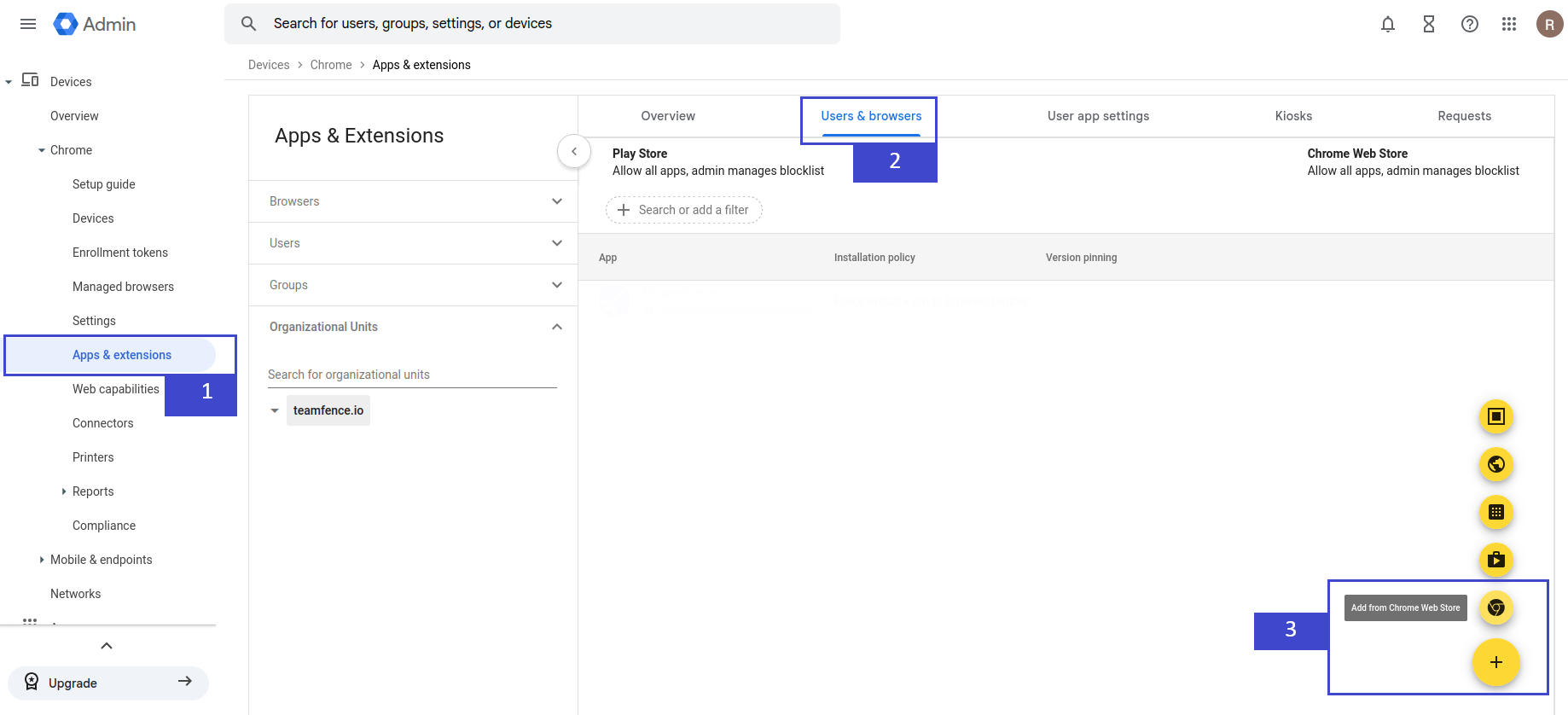
Navigate to Apps & Extensions
- In the navigation panel on the left, go to: Devices → Chrome → Apps & extensions.
-
Choose the app type
At the top, select:- Users & browsers — for managed Google Accounts on any device, or for enrolled browsers.
-
Add the extension from the store
Click the yellow+button in the bottom-right corner, then select Add from Chrome Web Store
-
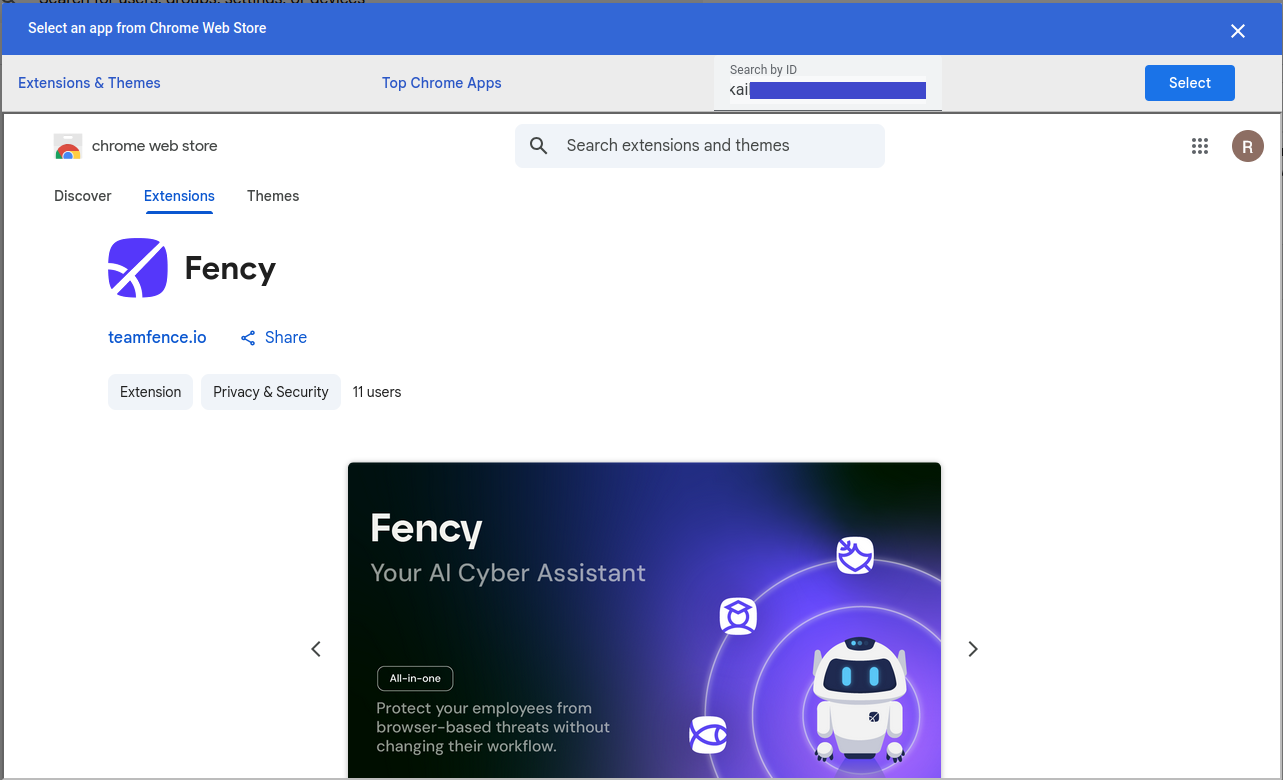
Select by ID
Using the extension ID provided in your activation email, select the TeamFence extension.
-
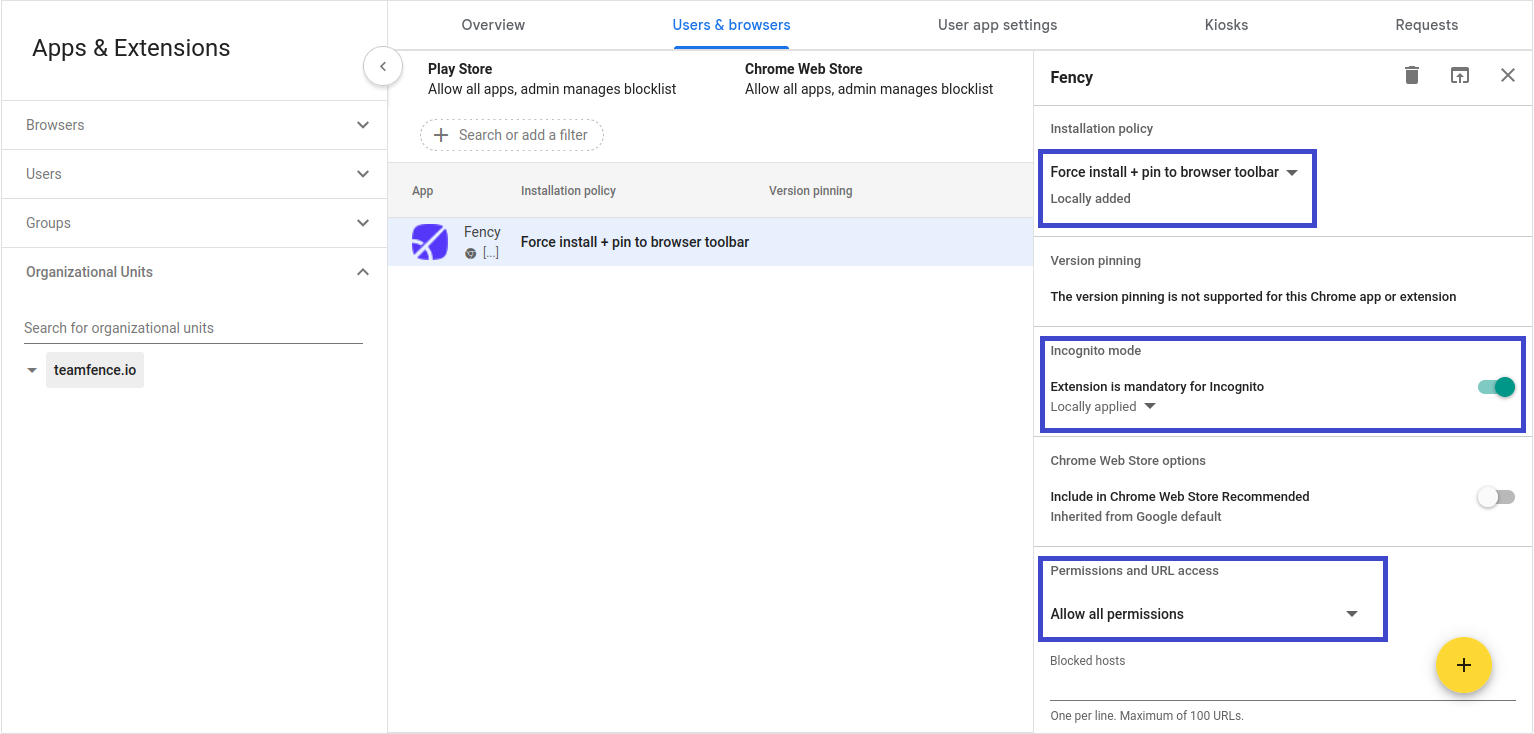
Configuration
Make sure to set the following settings for the extension:- Installation policy: Force install + pin to browser toolbar
- Incognito mode: Enable Extension is mandatory for Incognito
- Permission and URL access: Allow all permissions
-
Save your changes
Click Save (or Override if setting for a child organisational unit). -
Verify the deployment
- On a managed device, go to
chrome://policy. - Click Reload policies.
- Check that
ExtensionSettingshas status OK. - Expand to confirm the JSON string has no errors.
- On a managed device, go to